Pricing - Timing Profiles

Pricing Timing Profiles define when specific tariff rates apply, allowing you to accurately manage Time of Use (TOU), peak, off-peak, shoulder, and other time-based pricing structures. Correctly configured Pricing Timing Profiles ensure energy usage is billed against the appropriate rates based on when consumption occurs.
All time-of-use (TOU) meters require a timing profile, which determines when usage schedules are applied.
Important: Price plans and schedules already invoiced cannot have their timing profiles changed.
Add a timing profile to your price plan
To add a timing profile, go to Maintenance menu, Billing & Invoicing, and select Pricing. Select the price plan you wish to add the timing profile to and click the Edit icon.
Scroll to the Usage Schedules section, click on the 3 dots, then select Change Timing Profiles.
Click on the Add Timing Profile button.
Select a profile from the available options. Multiple timing profiles can be assigned to a single price plan. Each timing profile displays the associated meter types and usage schedules that will be applied.
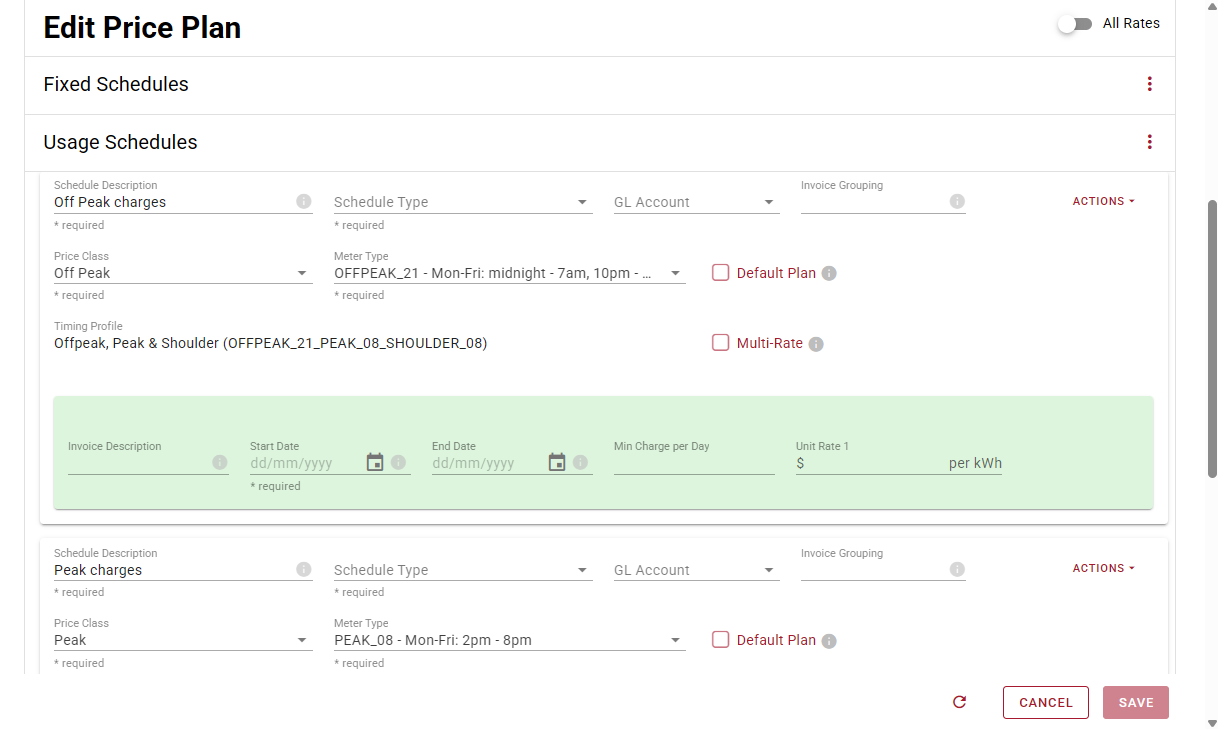
Enter the schedule type, start date and unit rate (required fields) as these must be completed before the price plan can be saved.
Edit a timing profile that is applied to a price plan
To edit a timing profile, go to Maintenance menu, Billing & Invoicing, and select Pricing. Select the price plan you wish to add the timing profile to, and click the Edit icon.
Scoll to the Usage Schedules section and click on the 3 dots, then select Change Timing Profiles.
Select a profile from the available options. Multiple timing profiles can be assigned to a single price plan. Each timing profile displays the associated meter types and usage schedules that will be applied.
Click the Change Timing Profile button to make the change. New schedules will be added to the price plan.
Enter the schedule type, start date and unit rate (required fields) as these must be completed before the price plan can be saved.
Delete a timing profile from a price plan
Price plans with assigned timing profiles can be updated or deleted. Profiles marked for deletion are shown in red, while profiles being modified are highlighted in green.
When deleting or editing a timing profile, existing schedules for that profile will be updated.
Schedules not associated with a timing profile will remain unchanged.
Important: Timing profile changes are not applied until the price plan and its schedules are saved.
Comments
0 comments
Please sign in to leave a comment.