How Utilmate support works

Utilmate supports users in many ways by providing extensive support articles, video guides, online support, submit a request and release notes.
How to access the Utilmate Support Suite
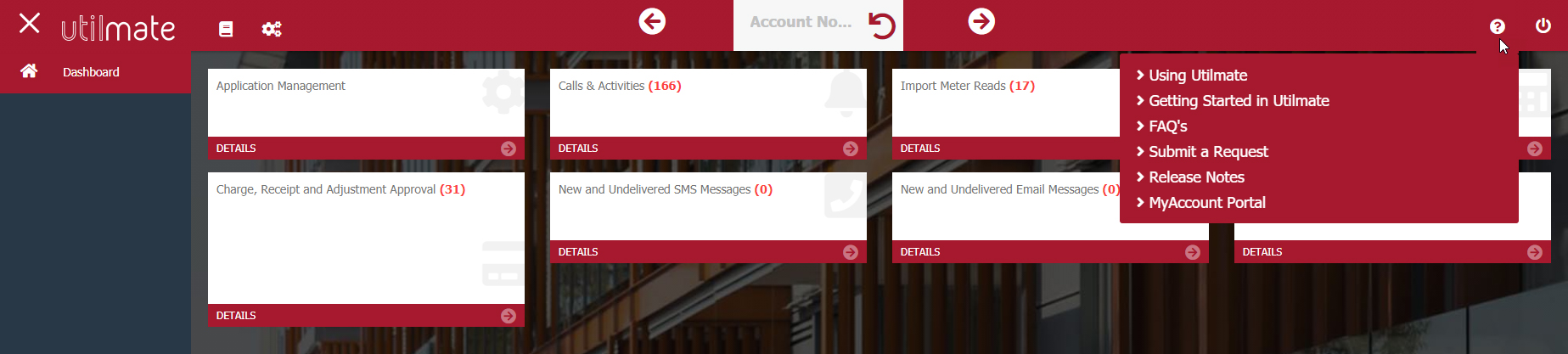
You can access Utilmate Support Suite directly from Utilmate CRM by clicking on the support icon  at the upper right-hand corner of the screen. The available help options are:
- Using Utilmate
- Getting Started in Utilmate
- FAQ’s
- Submit a Request
- Release Notes
- MyAccount Portal
User Guide
The Utilmate User Guide contains all the information you need and provides unlimited 24/7 online support to all users.
Search
When you search using the search box in the User Guide, you'll see a list of suggested articles based on the words you enter.
- Type your question, issue or keywords in the search box
- As you type your query, Utilmate suggests articles for you.
- Choose the article to view the information.
If the suggested articles don't answer your question, you can contact Utilmate Support with more details about your issue by submitting a request (you'll need to be logged in to do this).

Tip: Registered users can add comments to articles by clicking on the grey box, enter your text and/or images and links.
Getting started with Utilmate
This quick start video guide assists users to configure Utilmate and covers off the basics
Using Utilmate
The Using Utilmate section covers all areas within the Utilmate application.
FAQs
Frequently Asked Questions area contains common questions asked by users.
Submit a request
Before you submit a request to our support team, we recommend searching our User Guide for immediate answers to your questions.
Tip: You'll need to be logged in to our support area to submit a request.
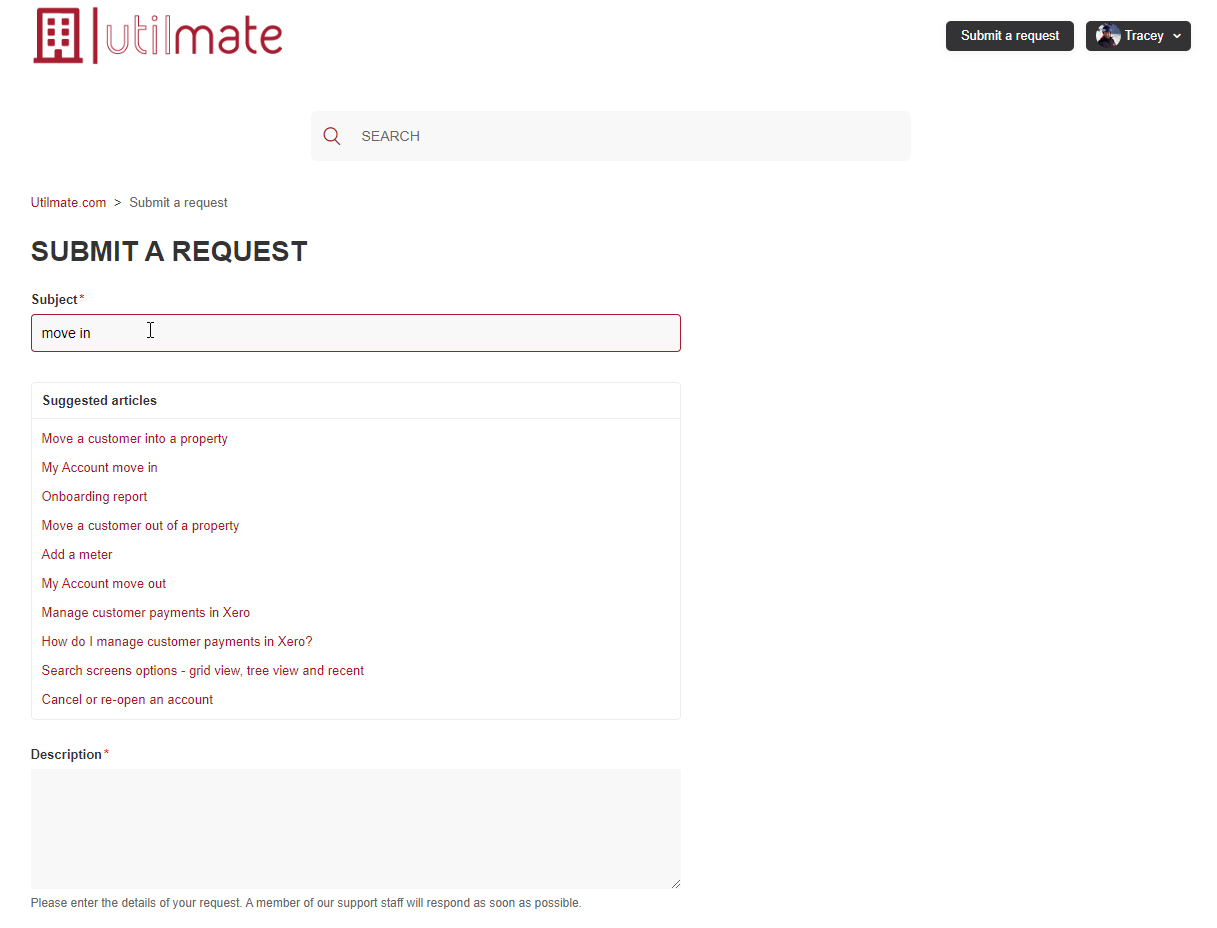
- Click on the Submit a Request button located at the top right-hand side of the screen. You'll be prompted to log in to the Help centre.
- As you enter your issue subject, Suggested Articles that might help you are shown according to the topic you need help with.
- If you can't find what you're looking for, enter your subject and provide additional details in the description box to help us understand what you need help with.
- Select the business impact.
- If you have a screenshot or file that will assist us, click Add file and select the relevant files to attach, or drag and drop into the grey box. (Optional)
- Click Submit.
Once your ticket is raised, we'll direct your request to the best support agent suited to answer your question and make sure you have all the necessary information to help you.
Viewing your tickets
To view your tickets:
- Click on your profile and select My activities.
- You can use the search box to search for your tickets (includes all company tickets), filter by status (Any, Open, Awaiting your reply or Solved).
- Click on the subject to open the ticket.

Reply to a response from Utilmate
- Select reply in the email notification you’ve received from Utilmate Support via support@utilmate.com.
- Log in to Utilmate Support, if you haven’t already, enter your response, and attach any relevant files (optional).
- Click Submit.
Release Notes
Our online listing (www.utilmate.com/releases) of all the good stuff where we announce our latest product updates, new features and improvements and more.
MyAccount Portal
Your quick access to your MyAccount Portal. Also see MyAccount user sign in to sign into MyAccount as one of your customers.
Comments
0 comments
Please sign in to leave a comment.